Samsung Notes
Productivity
2026-07-25
106.6MB
4.9.06.8
Android
582
Screenshots
Introduction
Samsung Notes is a note-taking tool for Samsung devices. This app boasts a wealth of features, allowing you to create new notes and add various content beyond text, such as drawings, photos, audio recordings, and experiment with different writing tools, making your notes more vibrant and engaging. You can also link your Samsung account to sync these notes across different devices.
Features:
Try creating a new note.
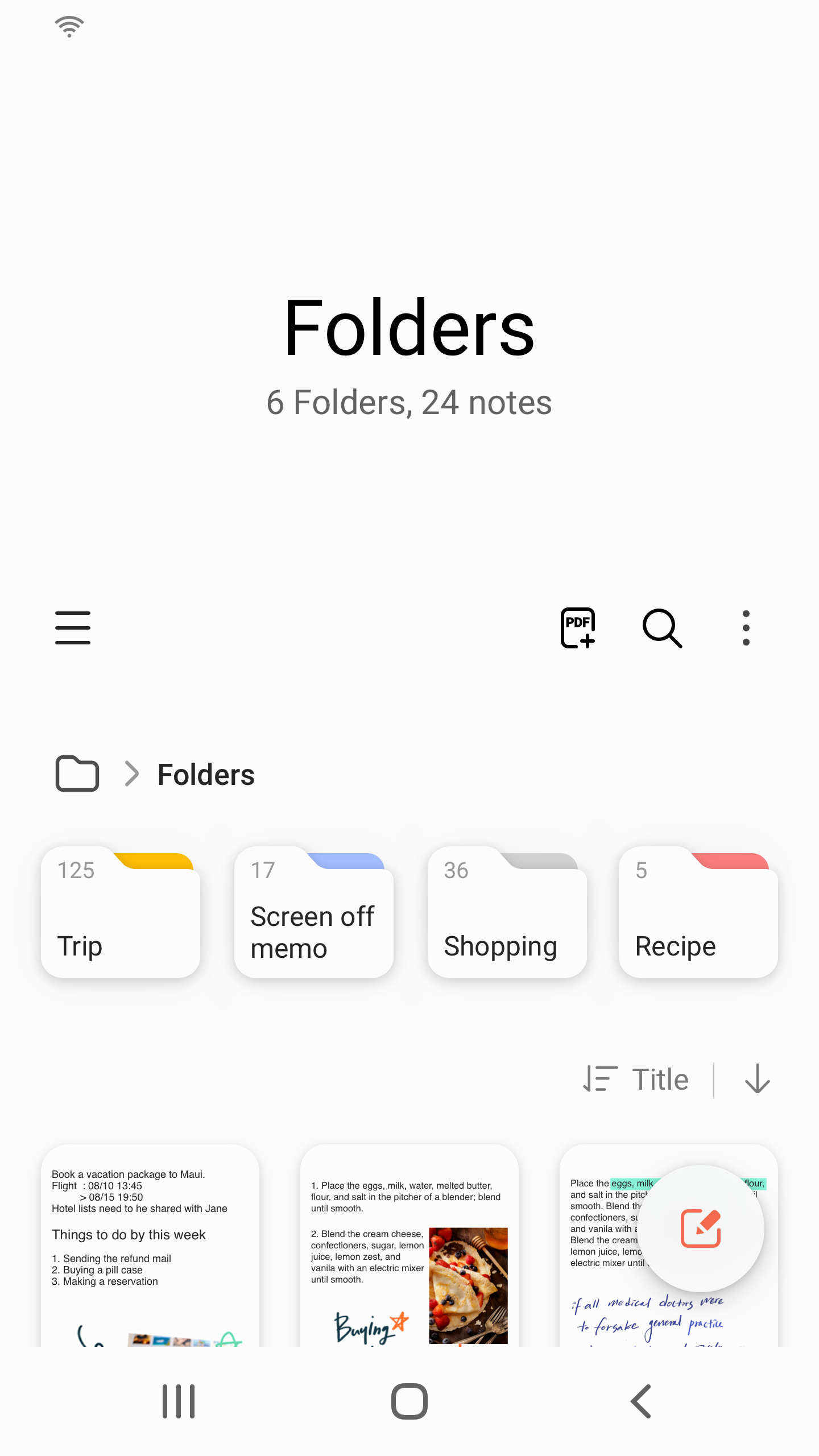
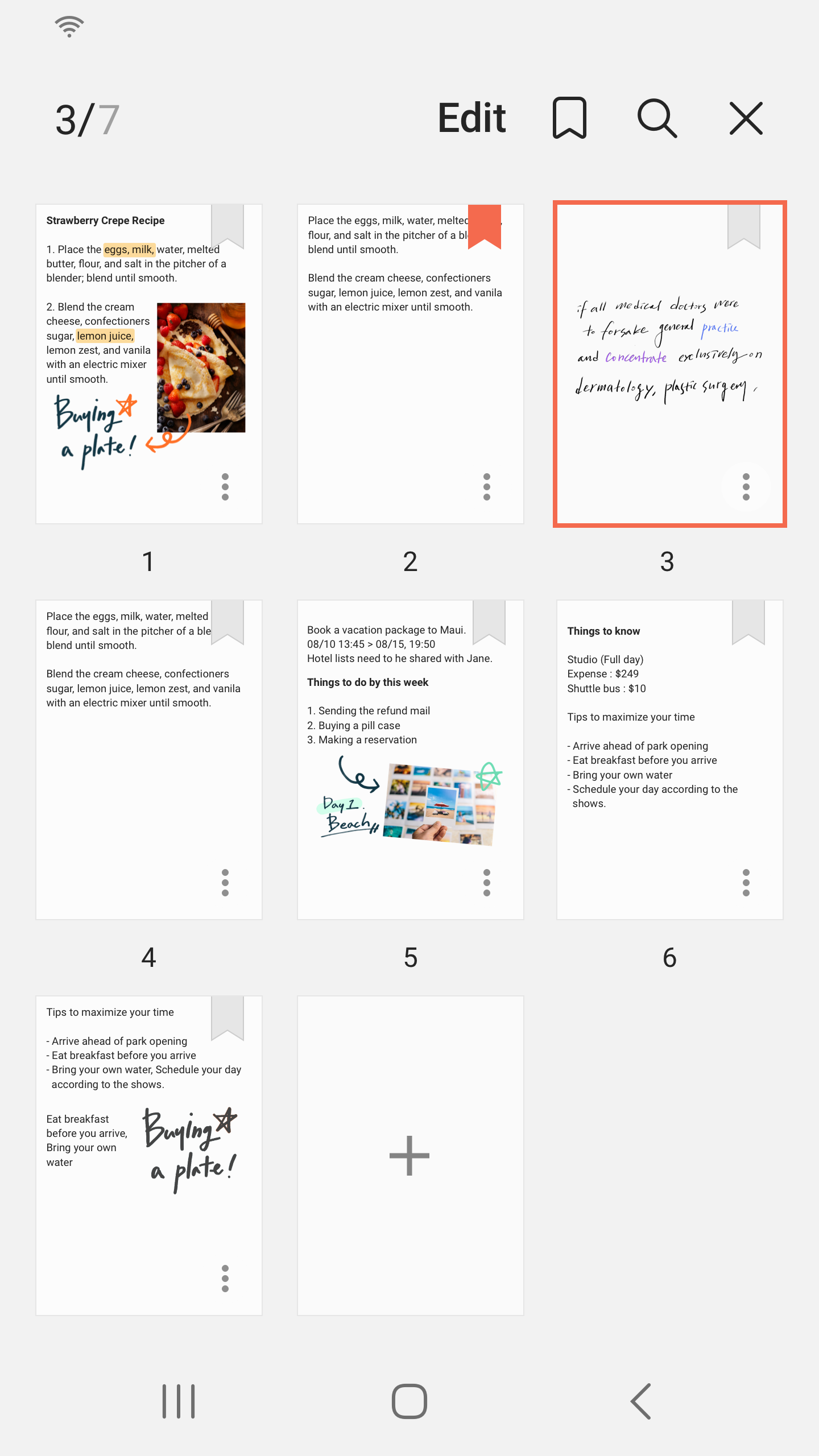
You can create a new note by tapping + in the bottom right corner of the main screen.
Newly created notes will have the “sdocx” extension.
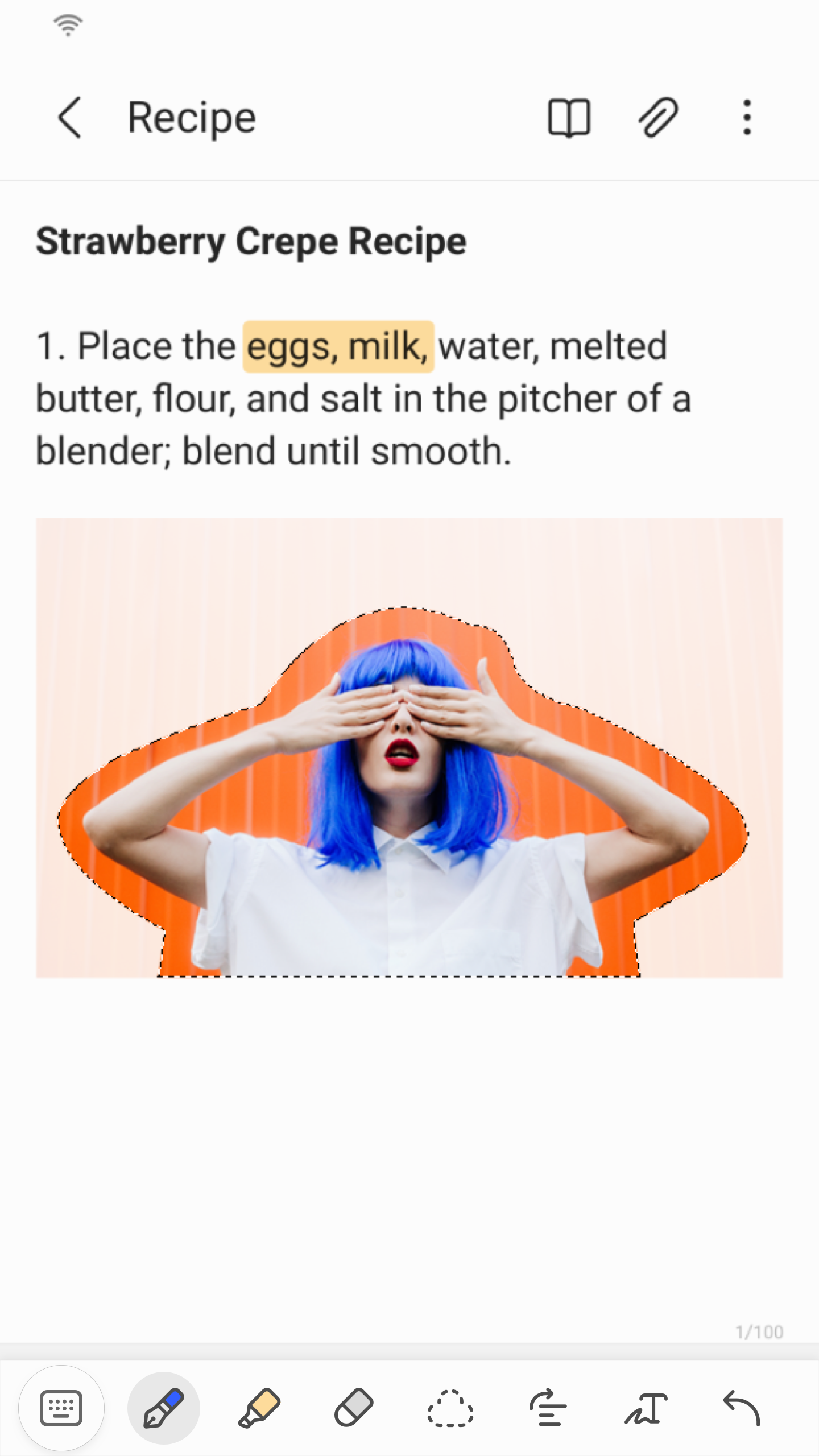
Create handwritten notes.
Tap the Handwriting icon while writing a note. Your handwriting will be displayed directly on the note.
Try drawing a picture.
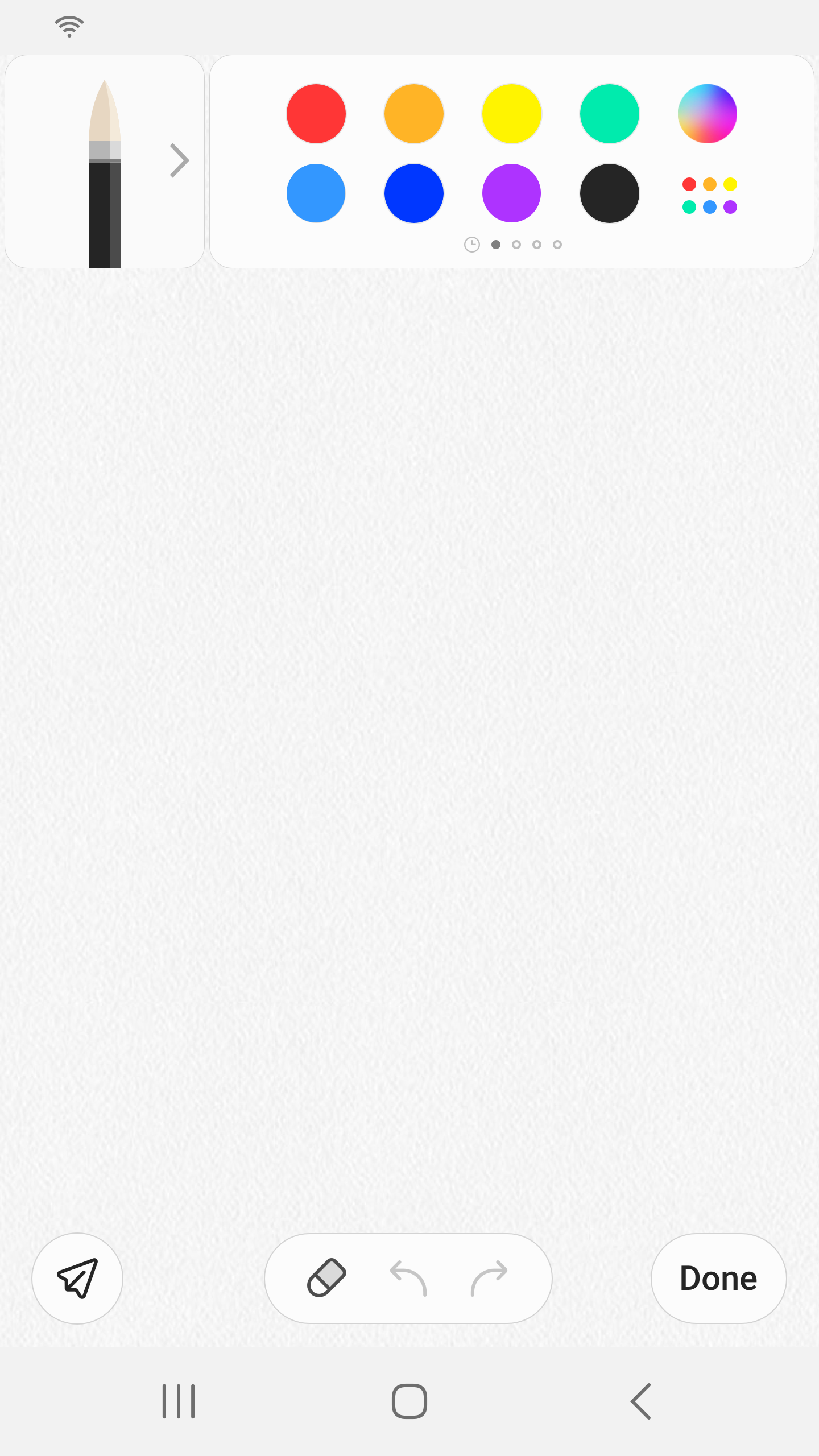
By tapping the Drawing icon while writing a note, you can draw using various brushes and colors.
Add photos.
Tap the photo icon in the note you are working on to take a photo. You may also load, add tags to and edit an existing photo.
Add a voice recording.
By tapping the Voice Recording icon while writing a note, you can record sound and create a note with sound.
Try using various writing tools.
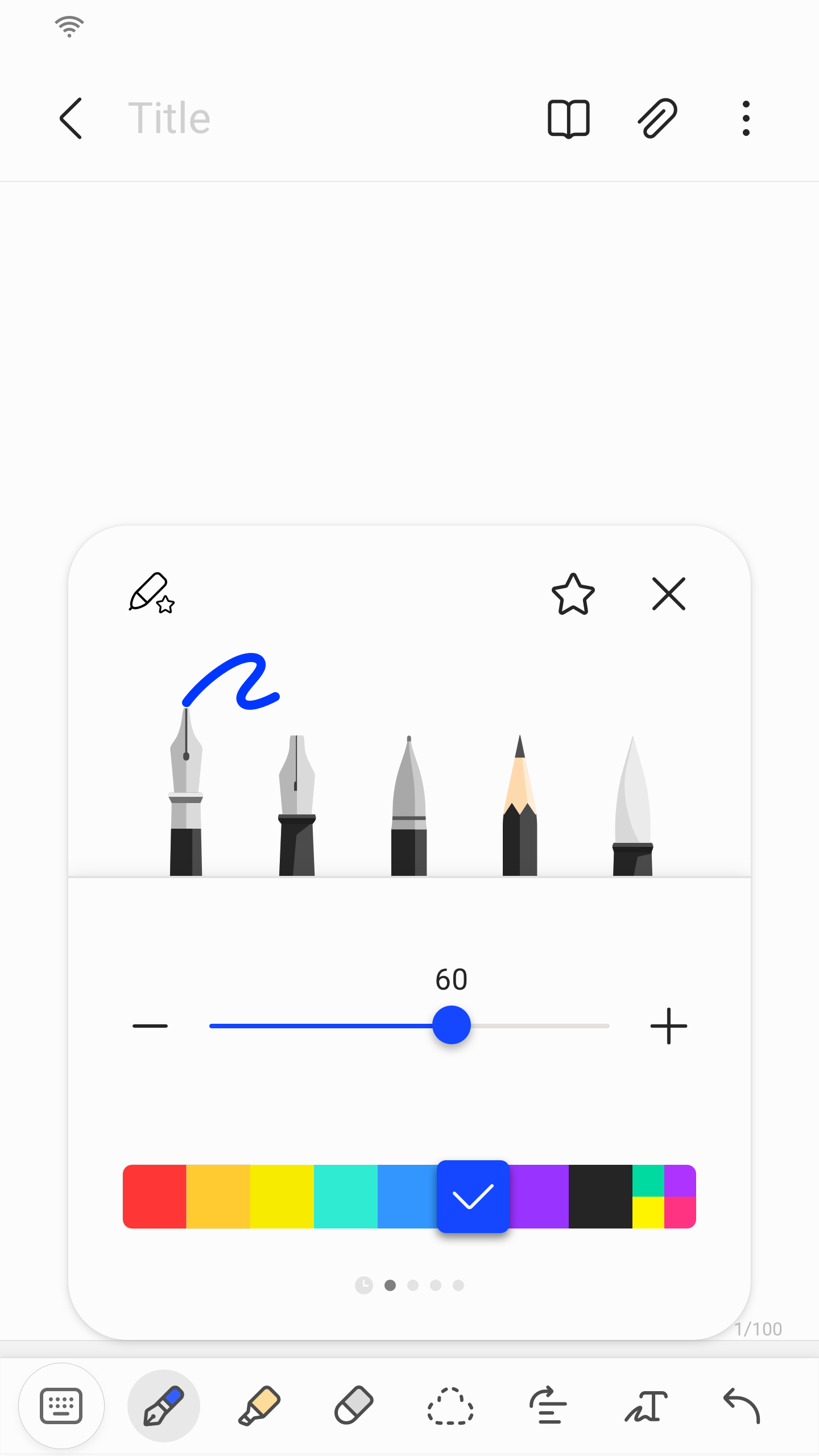
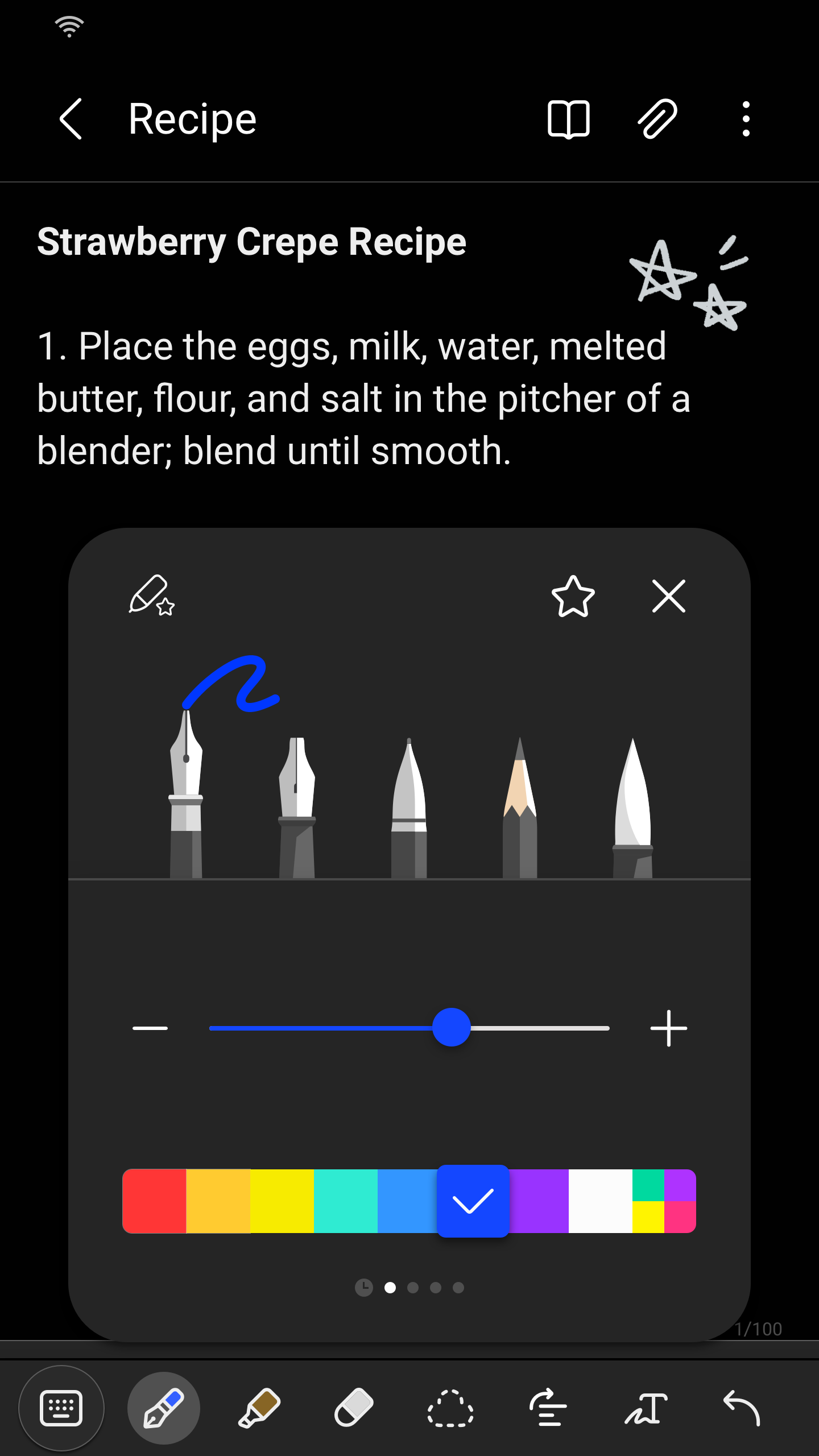
By tapping the Pen icon while writing a note, you can select a variety of writing tools such as pens, fountain pens, pencils, highlighters, etc., as well as various colors and thicknesses.
By tapping the Eraser icon, you can select and erase content that you want to remove.
Become an artist.
Choose from a variety of brush types, thicknesses, and colors.
Highlights:
The app is designed to be user-friendly, with a straightforward interface that allows for easy navigation. Users can create new notes by tapping the "+" icon located in the bottom right corner of the main screen. Newly created notes are saved with the “sdocx” extension, facilitating document management.
Samsung Notes operates with a variety of access permissions, enhancing its functionality. While basic features can be utilized without granting optional permissions, users can benefit from additional functionalities by allowing access to storage, photos, videos, music, audio, phone, microphone, and camera. For example, enabling microphone access permits users to add voice recordings seamlessly, while camera access allows for the inclusion of scanned documents and photos.
Pros and Cons:
Pros:
Easy to use and intuitive user interface
Supports multiple languages, including English, Chinese, Korean, and Japanese
Offers a wide range of drawing tools for sketching or writing notes with your finger or stylus pen
Allows users to share their notes via email, SMS message, etc.
Automatically saves all changes made in the letter as you type them out.
Synchronizes seamlessly across devices when linked with a Samsung account.
Cons:
Limited support for external devices such as stylus pens and Bluetooth keyboards.
No integration with third-party cloud storage services like Google Drive or Dropbox.
Not compatible with other note-taking apps, so switching to a different one is difficult without losing data.
Lacks advanced features like text formatting, audio recording, etc., which are available in more powerful note-taking apps
Usage:
Open Samsung Notes, then tap the plus button to create a new note. Give it a clear title to make it easy to find later.
Choose how you want to write. Type with the keyboard, or pick the S Pen to handwrite and switch tools as needed.
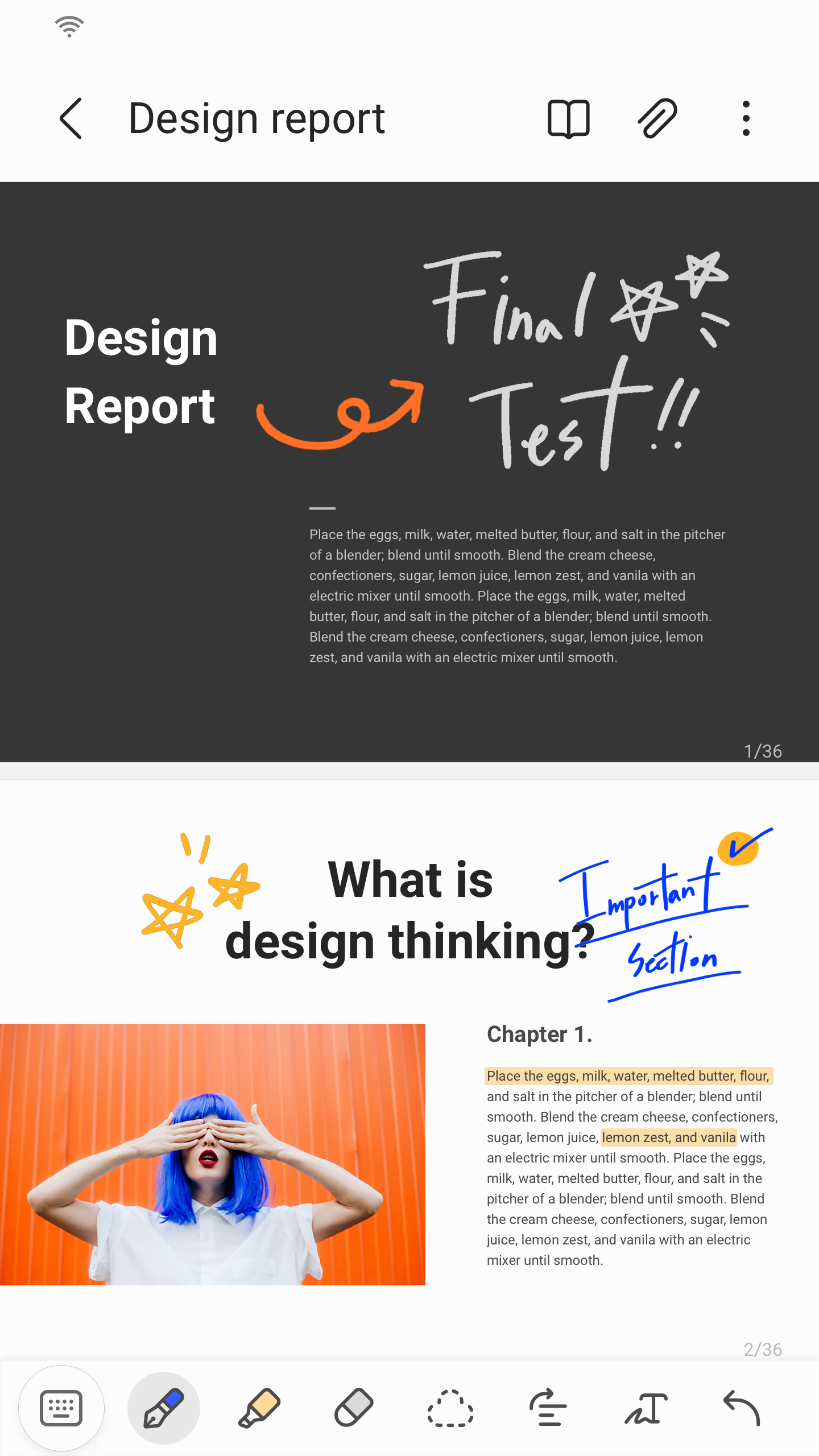
Add content as you go. Insert images, bring in a PDF to annotate, or start a voice recording to capture the discussion.
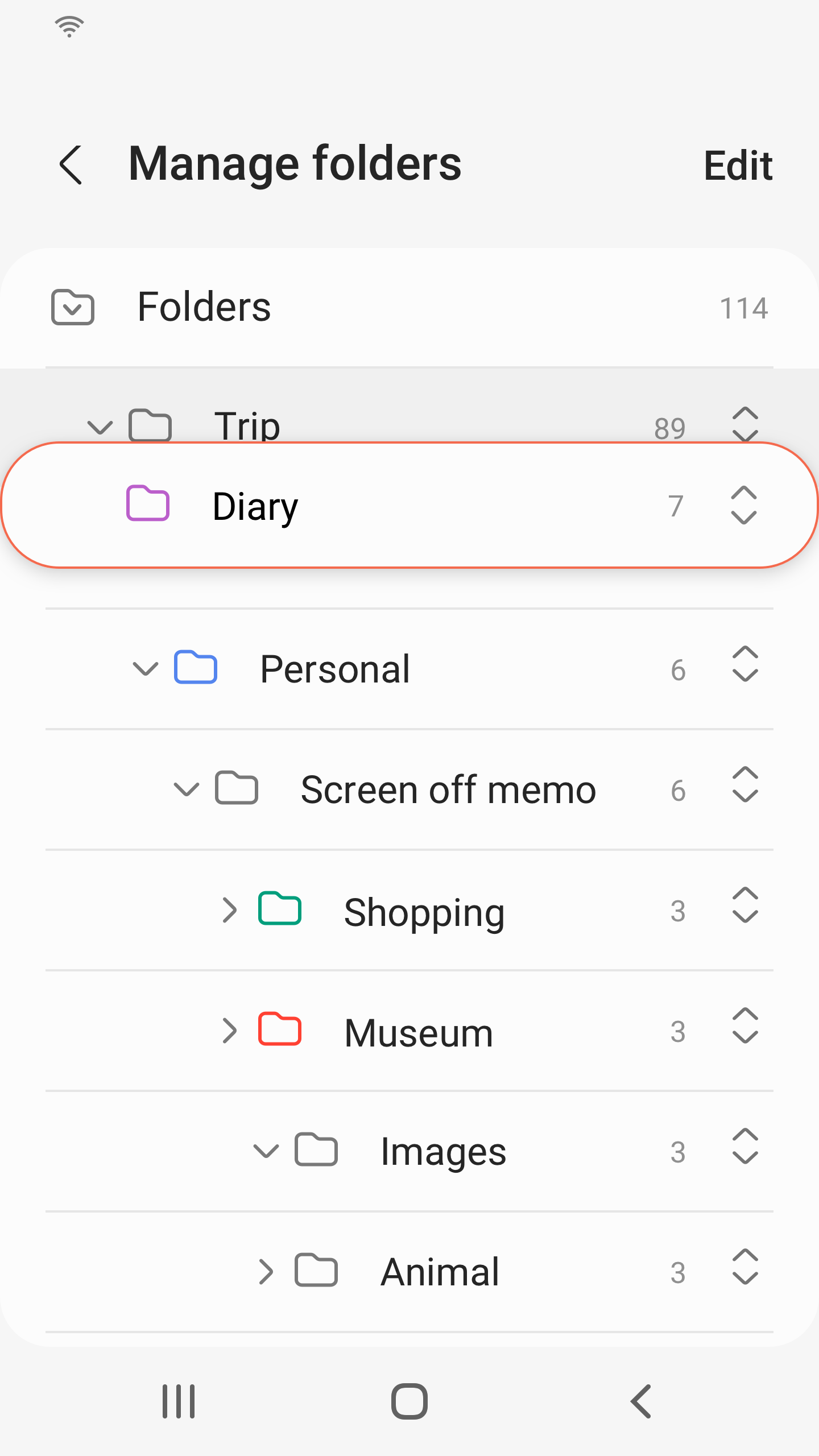
Organize the note. Move it into a folder or subfolder, apply a template if needed, and use Lock Note for private items.
When finished, tap Share to export as PDF, Word, or PowerPoint, or invite others to collaborate on the same note.
Conclusion:
Samsung Note's interface and operation are very similar to Google Keep, Google's note taking app. Both apps have similar features, sync all your notes to your account, and offer a quick and easy way to take notes anytime and anywhere. Not only that, you can write or draw with your fingertip and change the size, texture, and color of the pencil with Samsung Notes, as well as create text notes with your device's keyboard. Overall, Samsung Notes is a great note-taking app for your Android device.





-
Latest Updates
-
Featured Apps