
Revo Uninstaller
Tools
2026-08-12
45.23MB
3.5.250G
Android
299
Screenshots
Introduction
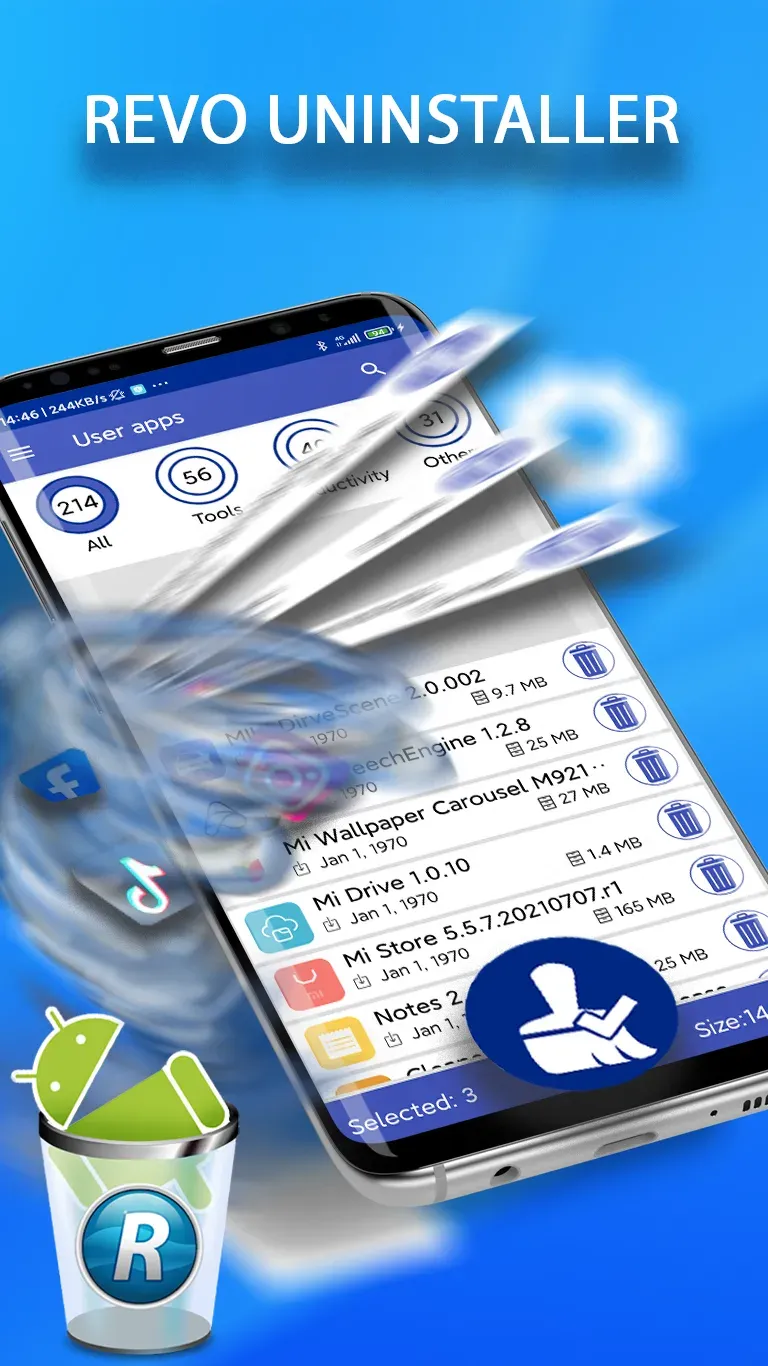
Revo Uninstaller is a practical application for Android devices that helps users uninstall other apps from their phones. With this app, users can easily delete unnecessary apps and leave less residual data, thus saving storage space. Users can also quickly create app backups. This app helps users organize other apps by category for easy viewing.
Features:
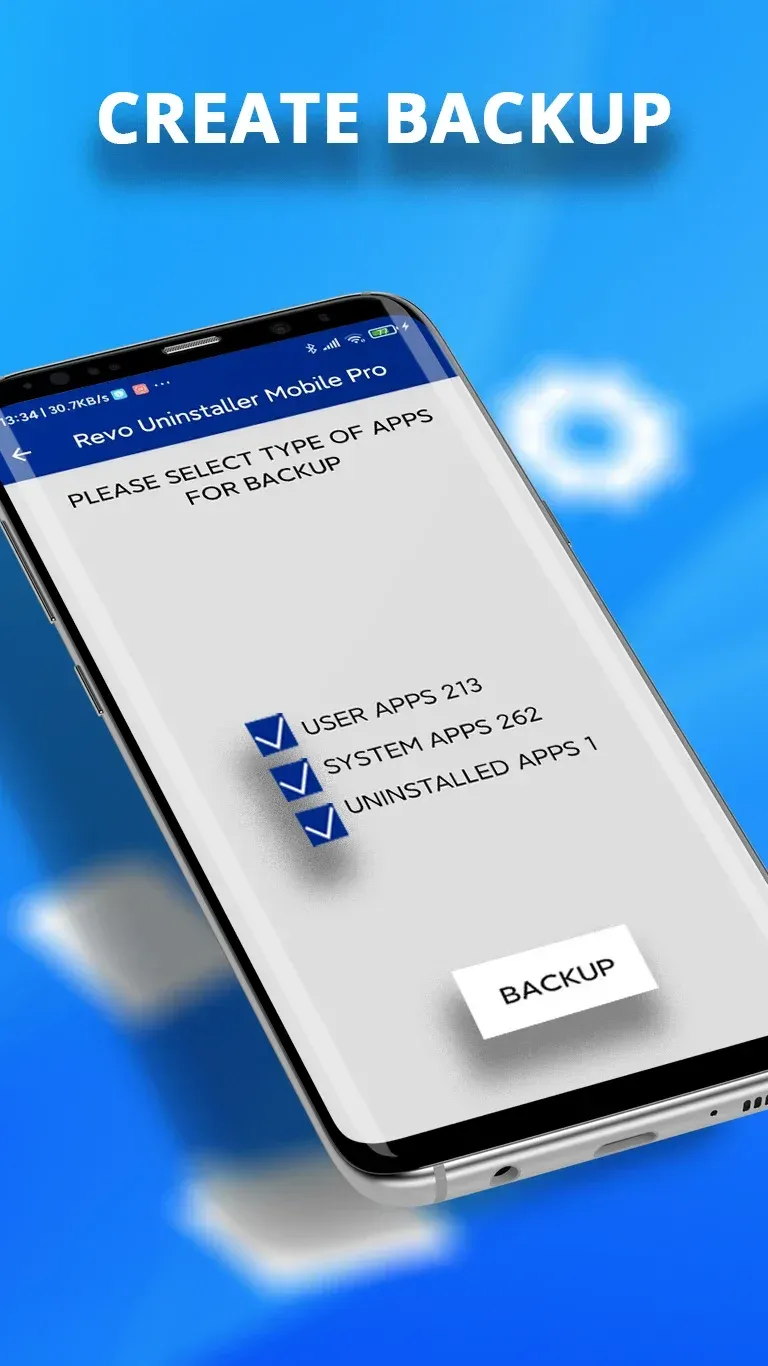
Create backup : Backup your app files, which include the apps installed, their names, versions, and size. Backup can be also made for app categories like all user apps, all system apps, or all uninstalled apps.
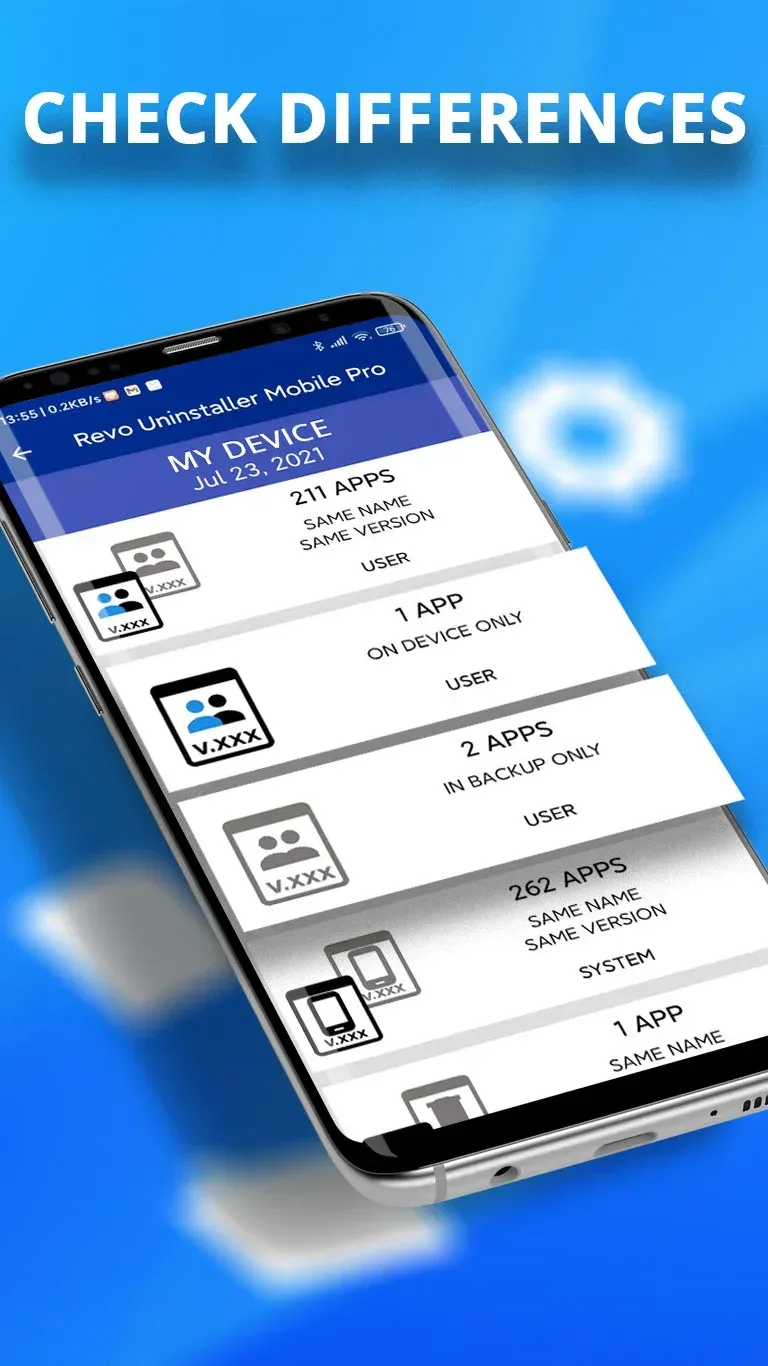
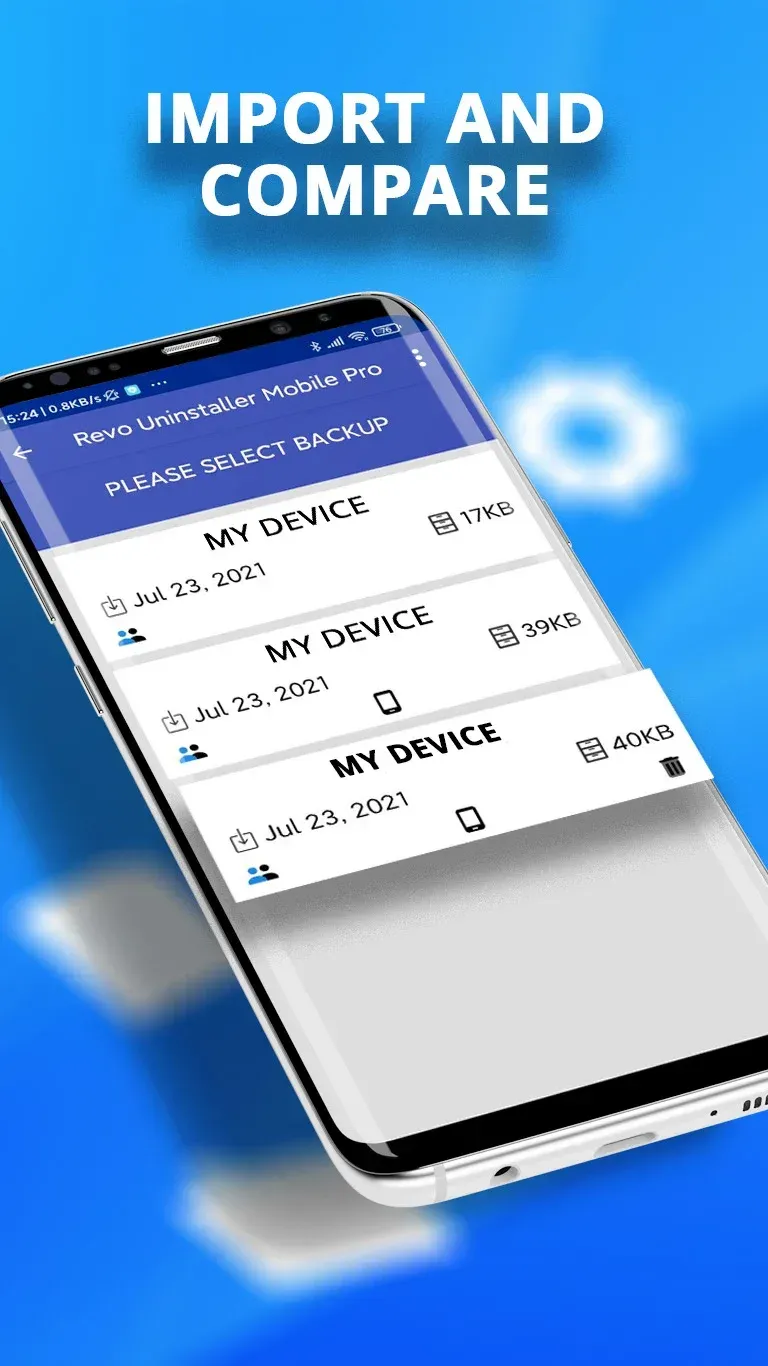
Import and compare : Compare your backup files with the current state of your device. See the difference in size, name, and version of the apps you have and links to the Google Play Store of the apps you no longer have (if the apps are still available).
Check difference : Compare the selected backup app list with currently installed apps.
Categories : Organize your apps with our smart filter in more than 60 predefined app categories like Tools, Communication, Social apps, and more.
Customize app categories : Create and organize unlimited custom app categories.
Highlights:
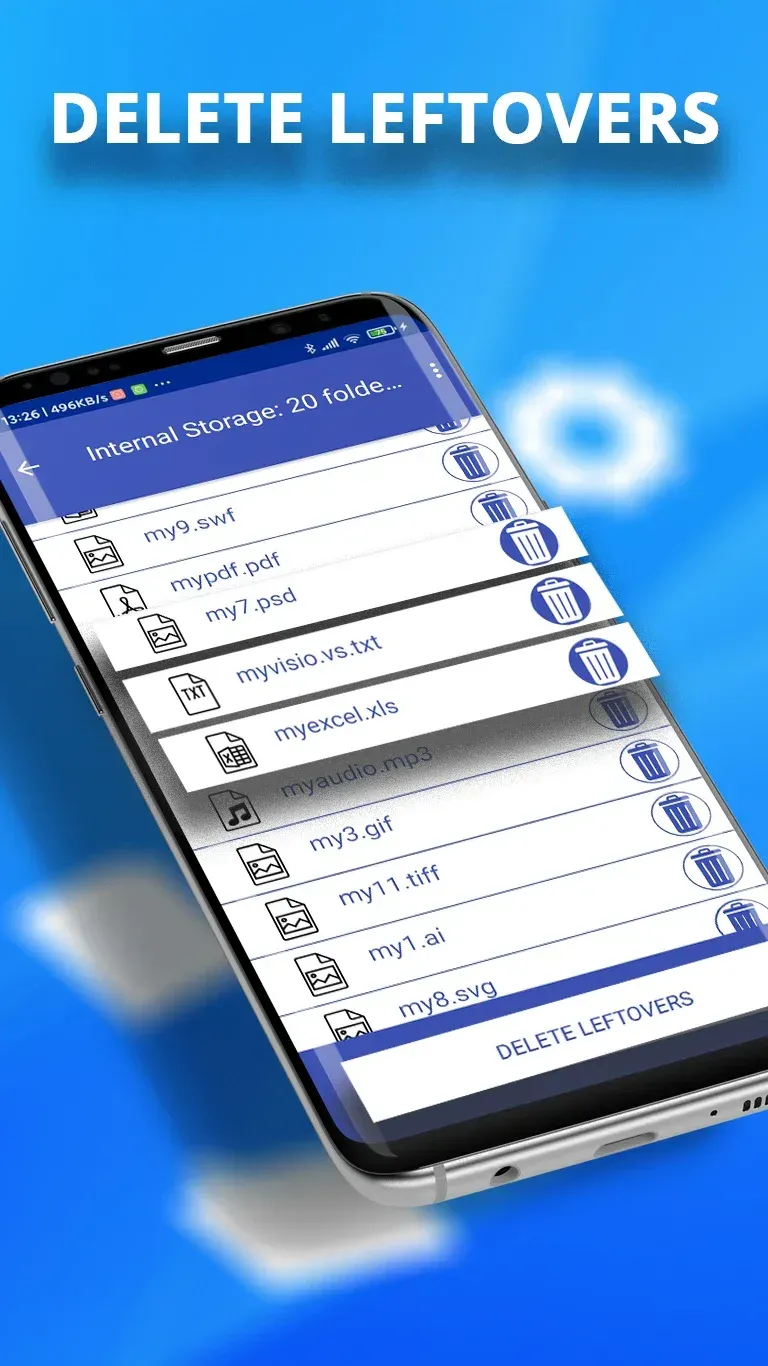
Remove unnecessary apps: Unnecessary applications will be easily removed by users. This application provides tools to help users quickly scan the storage and check for unnecessary data. The parts that have not been completely removed from the deleted applications will be removed after this step.
Scan for leftovers: Data stored in the storage will be scanned by the system. Regularly checking the data storage will help users minimize the risk of intrusion or overload. In addition, good management of residual data also helps users save storage space.
Delete all junk: Junk data is accidentally downloaded and stored by users in the device. This data will make the experience of using the device worse. Users can use the tools provided by the application to filter and quickly remove junk data.
Create app backups: Users can proactively create backups for installed applications. This feature allows users to back up installed applications, application names, versions, and sizes. The management of backups is also the responsibility of the user, and they can check their status at any time.
Compare device states: The user's backup files will be used for comparison purposes with the device status. Users can check and find differences between the files. From there, managing them becomes easier.
Organize into categories: The application will support users in rearranging categories in a certain order. Smart filters are created for the purpose of filtering and arranging about 60 different categories. Once they have been arranged in the desired order, users can easily manage all the files they own.
Function:
Quick Uninstall
Leftover scan
Multiple/Batch uninstall
Quick boot mode
Search and Sort applications
App Ranking
Categories
Uninstall history
App Management
App info
In-app Permission checker
Different languages
Night mode
FAQs:
How to uninstall an Android app?
After starting the Revo Uninstaller, you can see all installed apps and their information. Select the app you no longer need, and tap on the "bin" icon located next to the name of the app. The final step is to tap the icon with a broom on it. You will be asked if you really want to uninstall the selected app so just tap "yes".
Can I uninstall multiple apps?
Yes. Simply tap all apps you wish to uninstall, then proceed with their removal. The apps will be uninstalled one after the other.
I cannot find the app that I'm looking for. Why?
By default Revo Uninstaller opens the user apps list. If an app isn't listed there, it should be listed in the system apps list: open the "Menu" -> "System apps".
Can I uninstall system apps through Revo Uninstaller?
Revo Uninstaller cannot uninstall pre-installed apps, as it is restricted by the Android OS. You can only change the permissions the app is using via Revo Permission Manager.
How to find already uninstalled apps?
You can easily find all previously uninstalled with Revo Uninstaller apps: "Menu" -> "Uninstalled apps".
Can I use the app in my native language?
Revo Uninstaller is translated to multiple languages. You can change the display language by opening the "Menu" -> "Settings", then selecting the desired language from the drop-down menu.
Can I help with the translation?
Yes, you can volunteer to help us with the translation from the settings: tap "Menu" -> "Settings" -> "Help us with the translation!"
Conclusion:
The application caters to various needs, allowing users to keep track of app permissions and uninstall applications they no longer require. It supports a seamless experience across all Android devices, ensuring that users can maintain their device's performance and security. Revo Uninstaller stands out as an essential tool for users who prioritize privacy and wish to have greater control over the permissions granted to their applications.