VLC
Entertainment
2026-09-22
45.77MB
3.7.1
Android
527
Screenshots
Introduction
VLC is a highly powerful media player. It supports a wide range of video and audio formats, including MP4, MKV, AVI, and MOV. With built-in codecs, the app eliminates the hassle of searching for plugins, making the experience seamless. Users can also stream online content directly within the app by opening HLS and DASH links. Additionally, the app features a built-in media library for easy file management and automatically displays album art for music. It also offers subtitle support, allowing users to easily watch videos in other languages.
Features:
Plays most formats with built in codecs
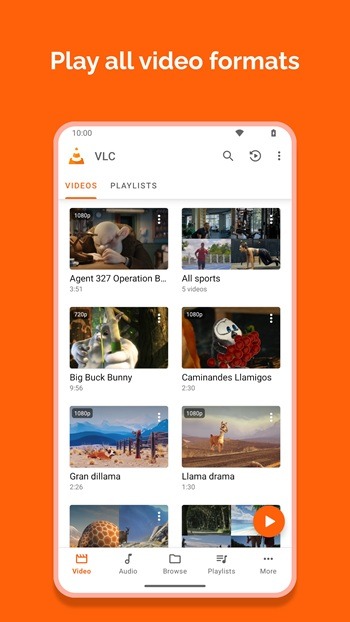
VLC opens common and niche formats without extra downloads. You can play MKV, MP4, AVI, MOV, Ogg, FLAC, TS, M2TS, Wv, AAC, and more using the codecs included in the app. This helps you avoid hunting for plugins and keeps setup simple. Files stored locally or on removable storage open the same way, so playback starts quickly.
Network streaming and home shares
For network playback, you can open HLS and DASH links directly from the app. VLC also browses network shares and drives, which makes it easy to reach media on a NAS or a home server. It plays DVD ISO images without conversion, so archived discs remain accessible on your phone or tablet. This approach works well for both quick links and long term libraries.
Full audio player with library and controls
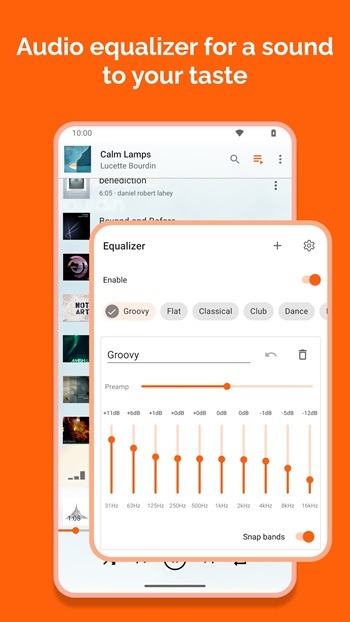
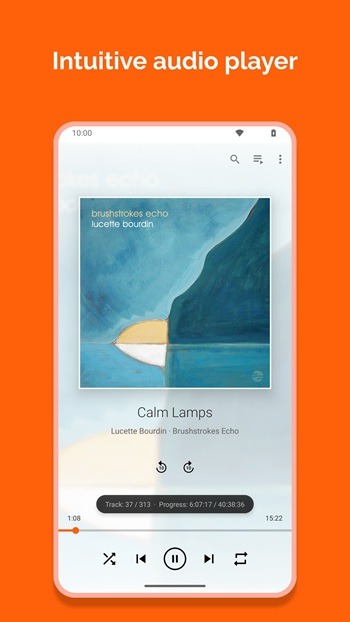
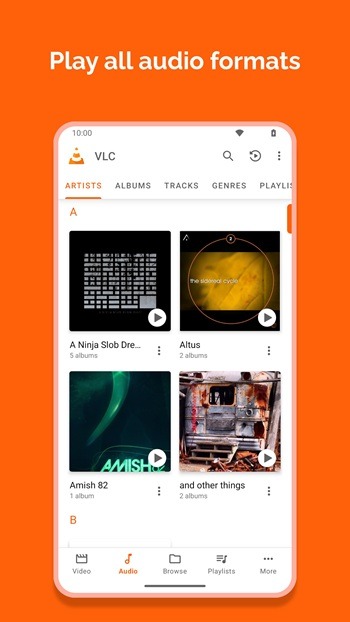
Beyond video, the VLC player app manages your music with a built in media library and cover art. You can fine tune sound with a ten band equalizer and audio filters, then control playback from headset buttons or an audio widget on your home screen. This keeps common actions within reach while you are on the go. Playlists and library browsing keep longer sessions organized.
Subtitles and multiple tracks
When captions are needed, VLC supports subtitles, Closed Captions, and Teletext. You can switch between multiple audio and subtitle tracks during playback, including tracks from external files. This is useful for multilingual videos or alternate commentary. Loading a local SRT file or choosing an embedded track takes only a few taps.
Touch gestures and flexible viewing
For day to day control, you can use gestures to change brightness, adjust volume, or seek through a video. Auto rotation and aspect ratio options help match your screen and content. Picture in Picture keeps a small window on screen while you use other apps, which is handy for notes or messaging. These controls make VLC for Android straightforward for both quick clips and long videos.
Function:
It plays most local video and audio files, network streams (including adaptive streaming), and DVD ISOs.
All formats, including MKV, MP4, AVI, MOV, Ogg, FLAC, TS, M2TS, Wv and AAC, are supported. All codecs are included with no separate downloads.
It supports subtitles, Teletext, and Closed Captions.
It has a media library for audio and video files, allowing you to browse folders directly.
It has support for multi-track audio and subtitles. It supports auto-rotation, aspect-ratio adjustments, and gestures to control volume, brightness, and seeking.
It also includes a widget for audio control, supports audio headset control, cover art, and a complete audio media library.
Tips and Tricks:
When opening the app, the contents are sorted by video or audio. You can also use the integrated file explorer to go directly to a folder to play the content. You can choose between dark or light modes at the interface level or opt for the automatic change depending on the system option.
In the player, you find a host of options available to make watching content more comfortable. When playing, you can swipe up on the left to increase the brightness or on the right to increase the volume. If you tap twice on either side, the video will jump 10 seconds. By swiping at the bottom, you can move the content you are viewing forward or backward in time.
During playback, you can choose the audio or subtitle language. If these are not integrated, you can download them directly from the Internet, where the app uses the name of the content to search for matching subtitles.
Other useful features of the app include audio-only playback with the screen turned off or playback in PiP mode, with a small window always displayed on the screen, even if you switch apps. You can also speed up the playback of the content.
Finally, you find advanced features you can turn on or off. For example, you can enable hardware acceleration so that the videos you play consume less battery power. You can also deactivate it if you want greater stability or have problems playing any particular content.
FAQs:
What is VLC APK?
VLC APK is a media player app. It is used to play video, audio, network streams, and subtitle files in one place.
What is VLC used for?
It is used for watching videos, listening to music, opening many file formats, playing content from shared storage, and streaming media over a network.
Does VLC APK support subtitles and different audio tracks?
Yes. It supports subtitles, closed captions, and multiple audio tracks, which is helpful for movies, shows, and foreign language content.
Can VLC APK play all video and audio formats?
It supports a very wide range of formats, including MP4, MKV, AVI, MOV, FLAC, AAC, and more.
Who should use VLC APK?
It is a good fit for Android users who want one media player for local files, music, subtitles, and network streaming without needing extra codec packs.
Conclusion:
VLC suits users who need a flexible player for daily media use, travel, offline watching, or playback from shared storage. It is especially useful for people with mixed file libraries, subtitle-heavy content, or videos that refuse to open in default phone players. For casual users, it is easy enough to start with.